Running a tournament often means juggling many tools: a spreadsheet for names, a WhatsApp group for schedules, a paper bracket for the draw. This leads to double-booked matches and lost or disputed scores.
What’s Score brings all of this into one simple, connected sports management tool. This guide walks you through how to set it up, step by step.
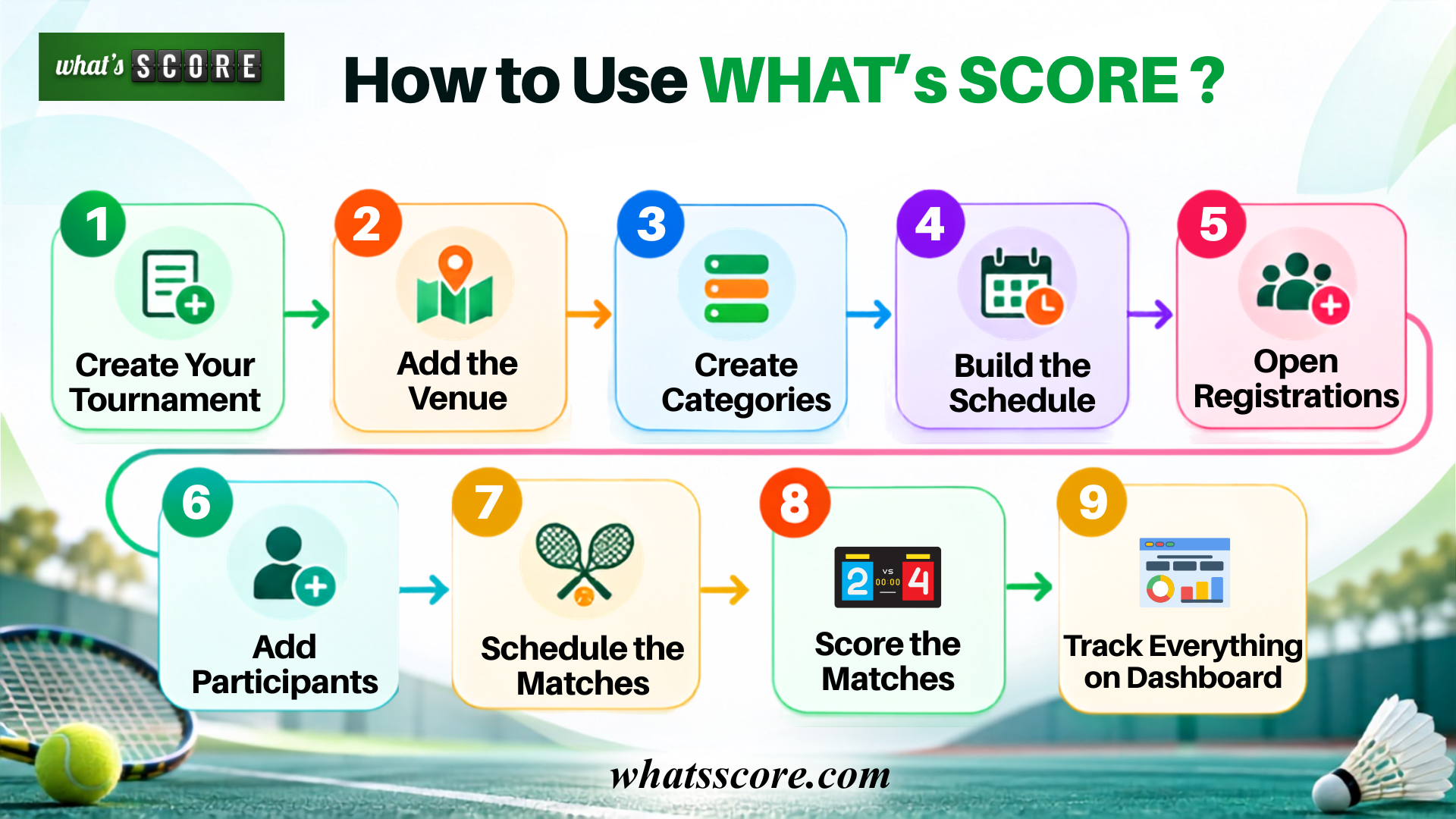
How to Use What’s Score: Step by Step
Step 1: Create Your Tournament
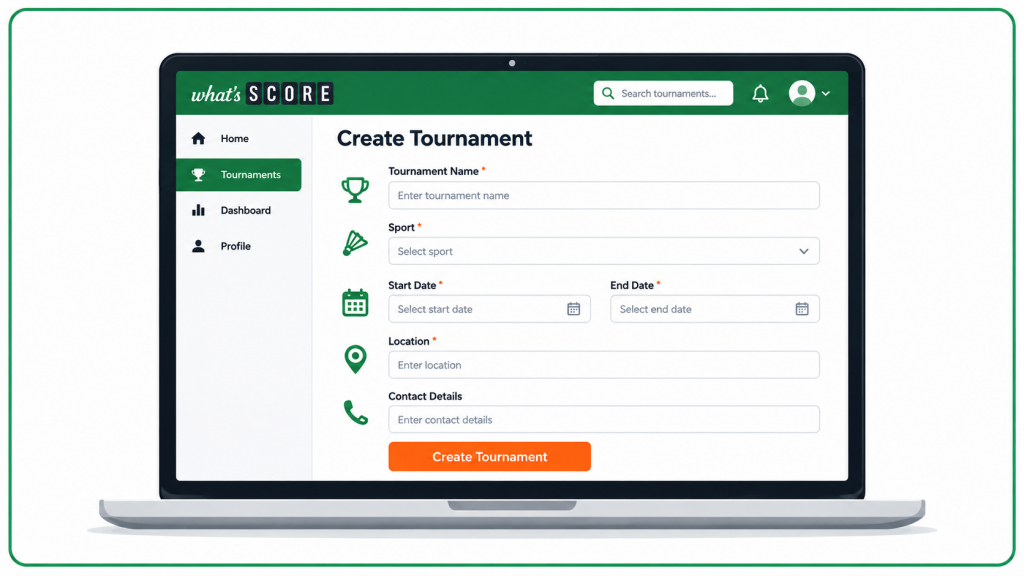
- Go to whatsscore.com/tournaments/manager
- Click on the “Create New Tournament” button
- Enter the details like name, sport, start and end dates, contact details, and location
- Click the “Create Tournament” button
- Your tournament is now ready to take registrations and is published online
- Go to Create Category for the next step in making your tournament live.
Step 2: Add the Venue
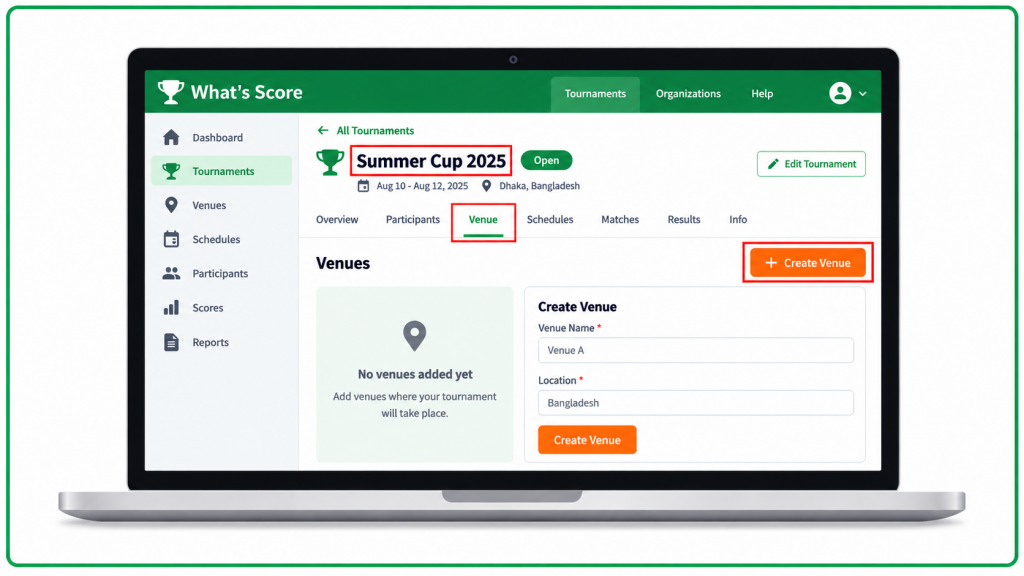
- Go to whatsscore.com/tournaments/manager
- Click on the tournament you created
- Click on “Venue,” then “Create Venue”
Note: Automatic Match Scheduling should be turned on when creating the tournament, or you can enable it later from the Info tab.
Step 3: Create Categories
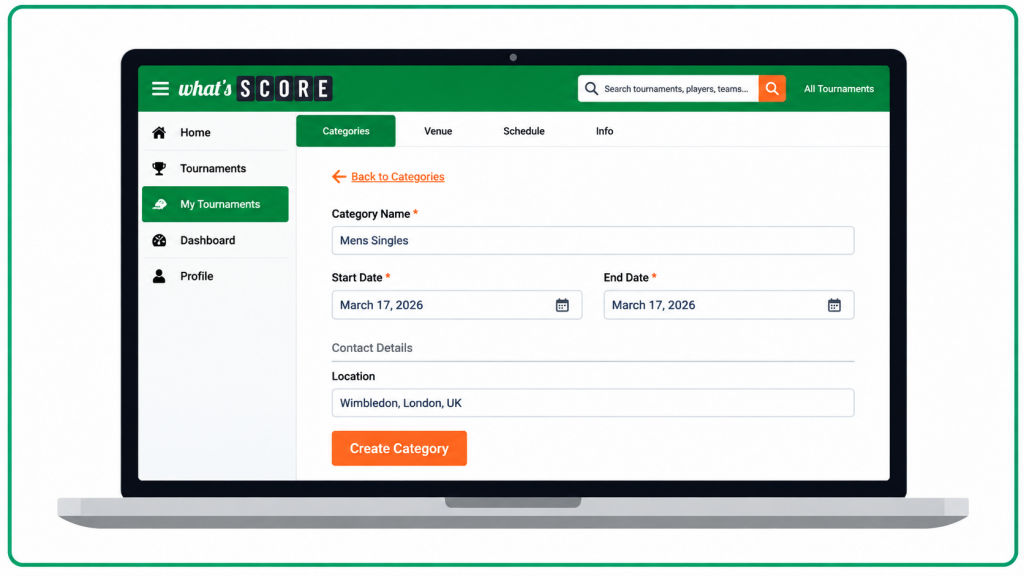
- Go to whatsscore.com/tournaments/manager
- Click on your tournament
- Click “Create Category” and enter a name (e.g. age based, gender based)
- Set the start and end dates, then click “Create Category”
Your tournament is now live. Next, allow registrations using the Registration Forms guide.
Step 4: Build the Schedule
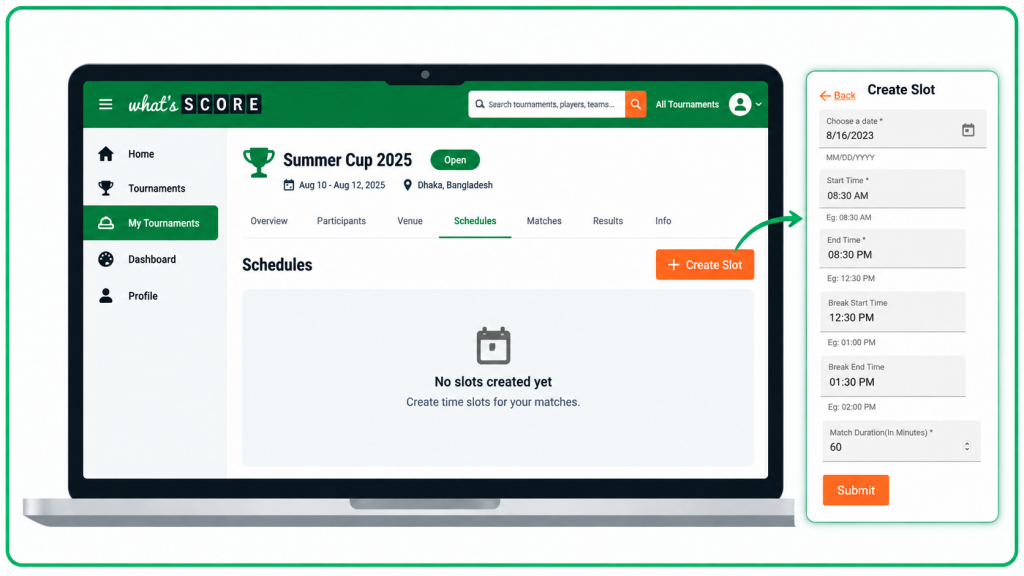
- Go to whatsscore.com/tournaments/manager
- Click on the tournament you created
- Click on “Schedules,” then “Create Slot”
- Enter the required details and click “Submit”
- The system automatically creates time slots, and matches can be scheduled easily
Step 5: Open Registrations
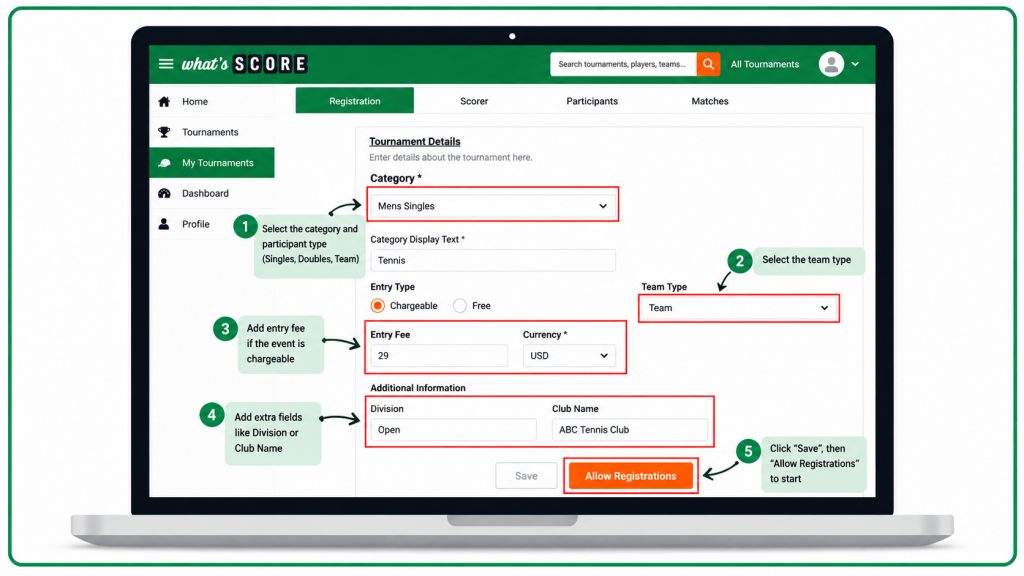
- Click the category and select participant type (Singles, Doubles, Team)
- Select the team type
- Add entry fee if the event is chargeable
- Add extra fields like Division or Club Name
- Click “Save,” then “Allow Registrations” to start
Step 6: Add Participants
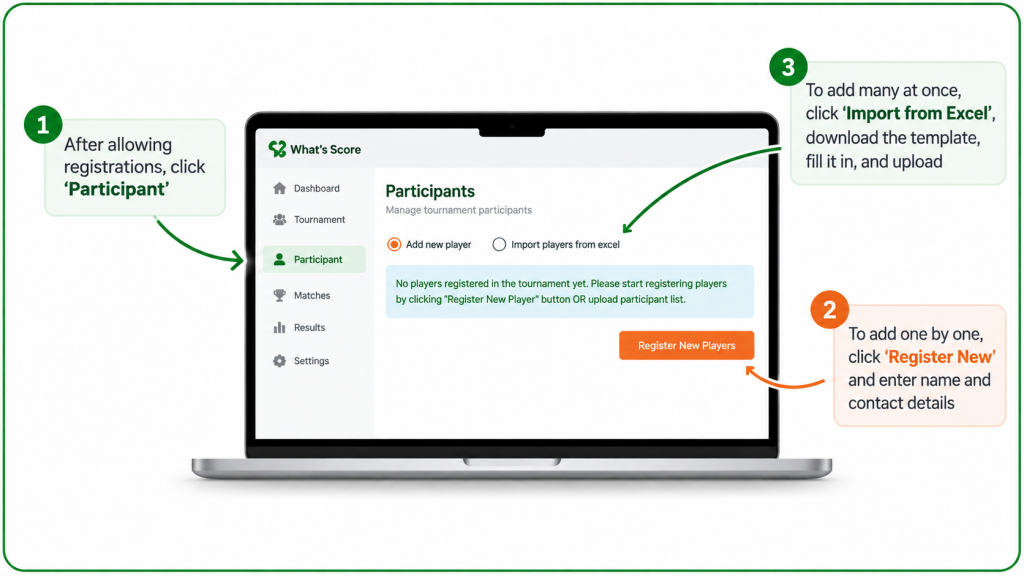
- After allowing registrations, click “Participant”
- To add one by one, click “Register New” and enter name and contact details
- To add many at once, click “Import from Excel,” download the template, fill it in, and upload
Step 7: Schedule the Matches
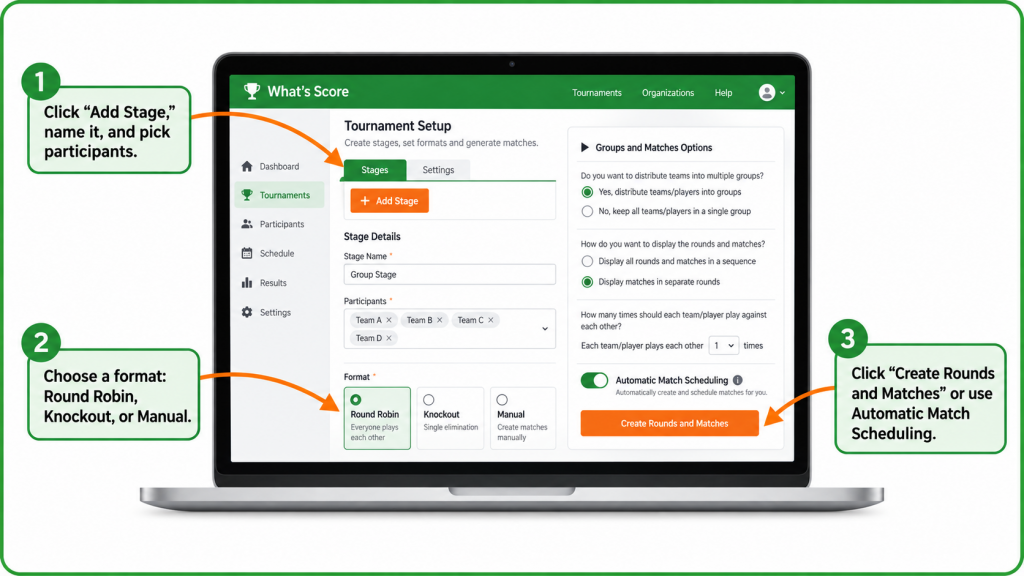
Click “Add Stage,” name it, and pick participants. Choose a format: Round Robin, Knockout, or Manual.
Then click “Create Rounds and Matches,” or let Automatic Match Scheduling do it for you.
Step 8: Score the Matches
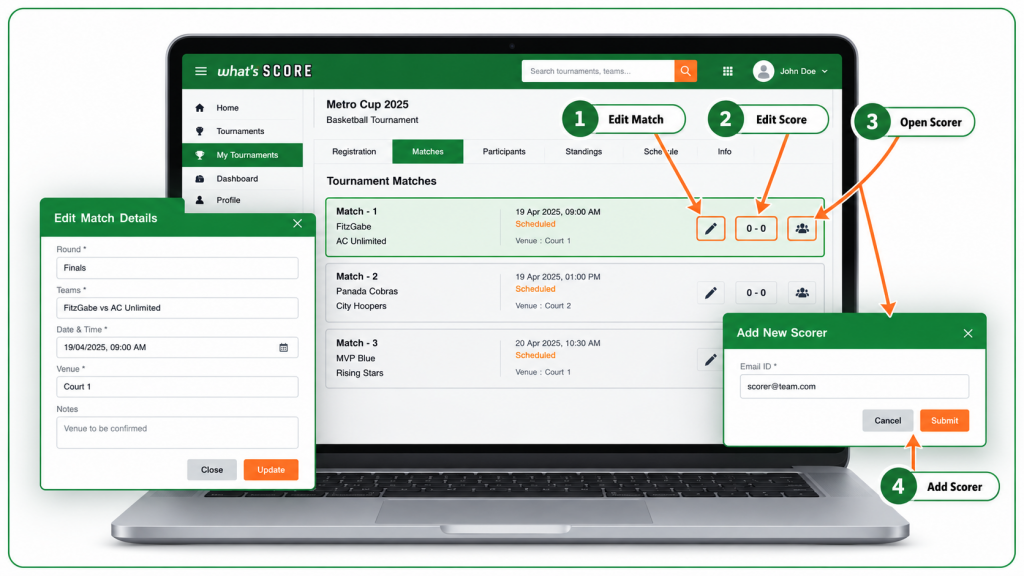
- Go to My Tournaments and select the tournament
- Click “Edit Match” to update team names, venue, live screening URL, date, and time
- Click “Edit Score” to add, remove, or change scores, and mark results like tied, natural win, or walkover
- To let others score, go to the Scorer menu after scheduling matches
- Allow participants to score, or click “Add Scorer” to give scoring access to another user
Live scoring shines here. Scores update in real time, so everyone always knows where the match stands.
Step 9: Track Everything on Dashboard
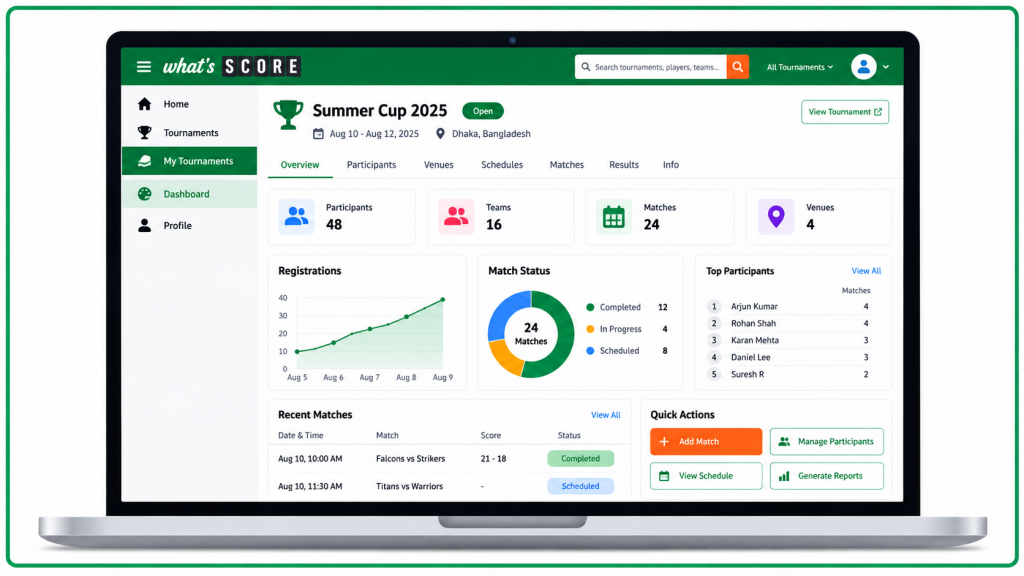
Once the tournament is running, the organizer can view registrations, schedules, and live scores from a single dashboard instead of switching between tools.
Book a Free Demo
Whether you’re organizing a small club event or a large championship, it keeps everything connected in one simple tool.
Book a free demo at whatsscore.com or learn more: About What’s Score